


Square Home
4.53.82K Reviews
App Specs
- Version
- 3.4.6
- Updated On
- License
- Free
- Downloads
- 5,000,000+
- Developer
- Total_Apps
- Categories
- Personalization
- Platform
- Android
Screenshots
 Analysis by AppCompare
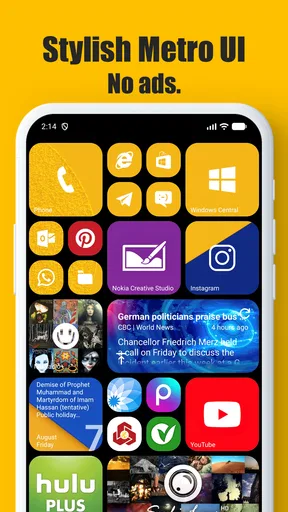
When I pick up an Android phone, I usually want the important things to be easy to spot: the apps I use every day, a quick route to a contact, and enough room for a calendar or other useful information. If the standard rows of icons feel cramped or dull, a launcher can change how the whole phone feels without changing the apps themselves. Square Home takes a tile-based approach, so the home screen becomes more like a set of flexible panels than a fixed grid. I find that most appealing when I want my phone to feel personal but still practical.
Start with the way you reach for your phone
The useful first step is not choosing colors; it is noticing what you actually open. If your day revolves around messages, calls, a calendar, and a handful of work or travel apps, those are the things worth making easy to reach. A tiled layout gives you room to make some shortcuts more prominent than others, rather than treating every icon as equally important. That can make the home screen feel calmer, especially if you have installed lots of apps but rely on only a small group.
That focus is also the main reason I would choose this over leaving the phone’s default launcher untouched. Most default launchers are familiar and perfectly serviceable, but their conventional icon grids can make a busy phone feel like a long shelf of equally weighted choices. Square Home gives you a different visual hierarchy. The trade-off is that it asks you to make a few decisions: which items deserve space, how large they should be, and whether a tile-based screen suits your habits at all.
Shape the screen around a real routine
Once the launcher is in place, I would build the screen in small passes instead of trying to design a perfect layout immediately. Put the everyday apps where your thumb naturally goes, then add the less-used items only when you find yourself searching for them. Tile colors, sizes, and shapes provide visual cues, so I would use those consistently—for example, one style for communication and another for planning—rather than decorating every tile differently. A tidy pattern helps the screen stay readable as you add more.
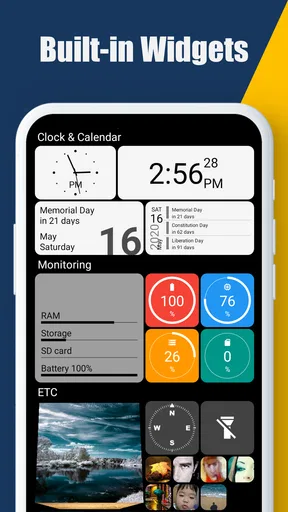
Widgets can make a tile layout more useful, but they also need restraint. A calendar or weather widget is worthwhile if you regularly check it before opening another app; a large panel that you rarely look at is just taking up room. I would start with one or two pieces of glanceable information, use the phone for a few days, and then resize or remove anything that is not earning its place. That small trial-and-adjust cycle is more reliable than filling the screen in one sitting.
For a realistic morning routine, imagine checking the day’s appointments while making coffee, opening a navigation or transport app before leaving, and reaching a frequent contact without digging through several screens. Square Home’s tiles, shortcuts, and folders can bring those separate tasks closer together. The benefit is not that the launcher performs the tasks for you; it is that a well-arranged home screen can reduce the number of little searches between them.
Move from the home screen into apps and tasks
The handoff from a tile to the app behind it is where a launcher has to feel dependable. The app drawer gives you another way to get around, while search can help when you remember an app or contact but not where you placed its shortcut. Folders work best for groups you do not need to see individually all the time: less-used utilities, for instance, can stay available without taking up a row of prominent tiles. I would keep frequent actions outside folders and use folders to reduce visual clutter, not to hide things I need constantly.
Worth Reading Before You Choose

EA SPORTS FC Mobile 26 Is a Bigger Football Game, but It Takes Time

Flipboard Shows What News Apps Must Do Beyond the Feed

Switching to Android Auto Means Rethinking Your Driving Routine

Google Calendar Makes a Crowded Week Easier to Manage

Ludo King Makes the Most of the Minutes Between Plans

Baby Panda World Brings Quick Play to Modern Phones, but Its Game Library Feels Busy
Shortcuts can make the layout more task-focused. A direct contact shortcut or a link to a frequently used playlist can save a few taps, but too many shortcuts create a new problem: a home screen crowded with tiny decisions. My rule would be to add one only after noticing that I repeat the same navigation often. That keeps personalization connected to a real habit instead of turning setup into a hobby that never quite finishes.
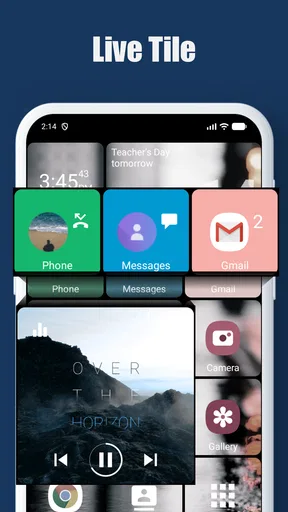
Square Home is a launcher rather than a replacement for the apps you already use. That distinction matters when deciding whether a tile should show information or simply open another app. The original review describes live tiles for things such as calendar events and weather, but the practical value depends on which tiles and information you use. I would check the screen at a glance during an ordinary day and keep only the panels that genuinely save a trip into an app.
What changes after the layout settles
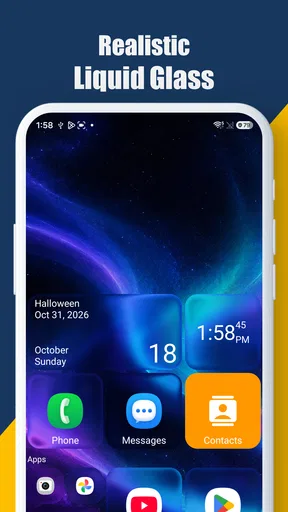
After a little adjustment, the best outcome is a home screen that reflects your priorities instead of your installation history. For someone who likes visible structure, the tiles can make categories and important actions easier to distinguish than a wall of similar icons. For someone who enjoys changing the look of a phone, the ability to adjust colors, transparency, shapes, and widgets offers room to experiment without requiring a completely different device or a new set of everyday apps.
There is a useful middle ground between a carefully arranged tile screen and a traditional launcher. You do not have to customize every corner to get value from the layout. A few larger tiles for your most-used tasks, a modest widget, and folders for occasional apps may be enough. If you later find that a tile is distracting or rarely used, removing it is part of making the system work, not a sign that the setup failed.
Where the workflow can snag
The freedom to personalize can become friction if you keep adjusting the screen instead of using it. A tile layout needs a little thought, and someone who wants the phone to stay exactly as it came may prefer the familiar defaults. Likewise, if your priority is a very plain icon grid or a launcher that feels invisible, Square Home’s distinctive tiled style may be more change than you want. I would skip it if the visual structure itself does not appeal to you; customization cannot make an unwanted layout feel natural.
There can also be a learning curve when moving from a standard launcher. Gestures and a more configurable screen are useful once they match your habits, but they may take practice, and a layout that looks clear to its creator might not be obvious to another person borrowing the phone. I would keep essential apps easy to identify and avoid relying on gestures alone for actions that need to be immediately discoverable. A quick test is to ask someone else to find a common app without coaching them.
Compared with other personalization choices, a launcher changes the arrangement and feel of the home screen, while a wallpaper or icon change mostly alters its appearance. That makes Square Home more involved, but potentially more useful if your problem is navigation rather than looks. It is also a different choice from staying with the manufacturer’s launcher: the default is usually the simpler path, while a tile layout rewards people willing to organize their screen around their own routine.
On the practical side, the app is free to install, with optional in-app purchases ranging from $1.99 to $5.99 per item. It is developed by Total_Apps, has an Everyone content rating, and its current version is 3.4.6. The minimum operating-system requirement is Android 7.0. Those details make it worth checking your device’s software before changing launchers, particularly if you are considering it for an older phone. Its 4.5 average from around 104,000 ratings and over 5 million installs suggest that many people have tried it, though popularity alone cannot tell you whether its visual approach will suit you.
First Impressions and Setup
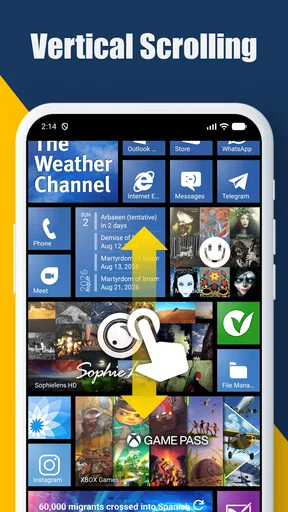
So, let’s start with the initial setup. Downloading Square Home is a breeze. Just head over to the Play Store, type in the name, and you’re good to go. The installation process is straightforward, and once it's up and running, you’re greeted with a clean, tiled interface that’s both minimalistic and vibrant. It feels familiar yet fresh, like meeting an old friend who’s had a stunning makeover.
Setting it up is surprisingly intuitive. You get to choose your tile colors, sizes, and even shapes. Want a hexagon here and a square there? No problem! The customization options are extensive but not overwhelming, which is a sweet spot for someone like me who wants flair without the fuss.
Features That Stand Out
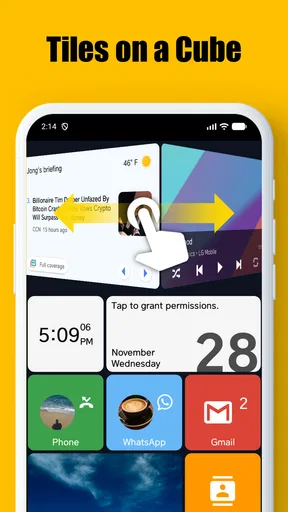
Alright, let’s dive into some features that really make this app shine. One of the standout features is the live tiles. You can have tiles that display real-time updates, like your calendar events or weather forecasts. It’s not just eye candy; it’s functional, keeping you up-to-date at a glance.
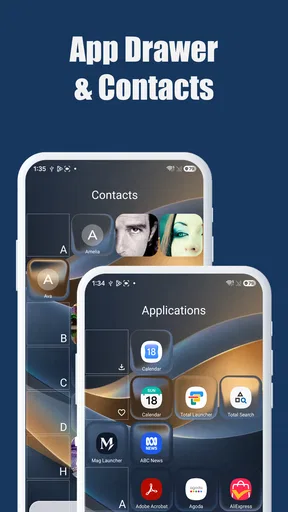
Another cool aspect is the app drawer. It’s smooth and organized, and you can customize it to show your most used apps or even hide the ones you seldom touch. Everything feels snappy, and I didn’t notice any lag during my time using the app, which is always a plus.
Navigation and Ease of Use
Navigating through Square Home is a walk in the park. The swipe gestures are intuitive, and you can easily switch between apps or go back to the home screen with a simple flick. The app supports a wide range of gestures, making it super easy to tailor the experience to your liking.
For those of us who love to keep things organized, the folder feature is a lifesaver. You can group apps into folders and pin them as tiles on your home screen. It’s like having a pocket-sized filing system at your fingertips. Plus, the search function is quite robust, allowing you to find apps or contacts swiftly.
Personalization Galore
If you're like me and love to tweak things to your heart’s content, you’re in for a treat. The level of personalization with Square Home is top-notch. You can change the color scheme, adjust the transparency of tiles, and even add widgets. It’s like having a blank canvas where you can paint your ideal interface.
Another neat touch is the option to add shortcuts. Whether it’s a direct dial to your bestie or a quick link to your favorite playlist, you can create shortcuts for almost anything. It’s the little things that often make a big difference in day-to-day use.
Compatibility and Performance
Let’s talk about performance. During my experience, everything was smooth sailing. The app is lightweight and doesn’t hog your device’s resources. I tried it on a couple of phones, ranging from budget to flagship, and it worked like a charm across the board. The developers have certainly done a fine job optimizing it for various devices.
Compatibility-wise, it requires Android 4.0 and up, which means it can run on pretty much any device from the past decade. Whether you’re rocking the latest Galaxy or an older Moto model, Square Home should fit right in.
Final Thoughts
In a nutshell, Square Home is like a breath of fresh air for anyone looking to breathe new life into their Android device. It’s not just about aesthetics; it’s about blending style with functionality in a way that feels seamless and natural.
If you’re tired of the same old grid layout and want something that’s both dynamic and user-friendly, I’d say give Square Home a spin. It’s like having the best of both worlds—customization and simplicity—wrapped in a beautiful tiled package.
Pros
- Highly customizable interface options.
- Smooth and responsive performance.
- Intuitive navigation for easy use.
- Widgets enhance functionality greatly.
- Efficient battery usage optimization.
Cons
- Limited free features available.
- Occasional minor bugs in updates.
- Some features require in-app purchases.
- Learning curve for new users.
- Ads can be intrusive at times.
FAQs for Square Home
What is Square Home, and how does it enhance my smartphone experience?
Square Home is a customizable launcher for Android devices that mimics the Windows Phone interface. It offers a grid-based layout with dynamic tiles, providing a unique and visually appealing way to organize your apps and widgets. It's particularly popular among users seeking a fresh, organized look for their home screens.
Is Square Home compatible with all Android devices?
Square Home is compatible with most Android devices running Android 5.0 (Lollipop) or higher. However, performance may vary based on your device's specifications. It's recommended to have a device with sufficient RAM and processing power to ensure a smooth experience while using the launcher.
Does Square Home affect my device's performance or battery life?
While Square Home is designed to be lightweight and efficient, any launcher can potentially affect performance and battery life. Users generally report minimal impact, but it's advisable to monitor your device's performance after installation. Adjusting settings and reducing animations can help optimize battery usage.
Can I customize the appearance of my home screen with Square Home?
Yes, Square Home offers extensive customization options. You can change tile sizes, colors, and shapes, add widgets, and even create custom shortcuts. This flexibility allows you to tailor your home screen to your personal preferences, creating a unique and personalized user experience.
Is there a cost associated with using Square Home, or is it free?
Square Home is free to download and use, but it offers in-app purchases for additional features and customization options. The free version is quite functional, but purchasing the premium version unlocks advanced features, such as more themes and tile effects, providing a richer customization experience.


